
Let AI Do the Heavy Lifting - Automate Your WordPress Content Workflow
Stop manually copying content into WordPress. If you’re managing multiple pages, service listings, or landing pages, there’s a smarter way to work and it doesn’t require a developer on standby every time you need a new page live.
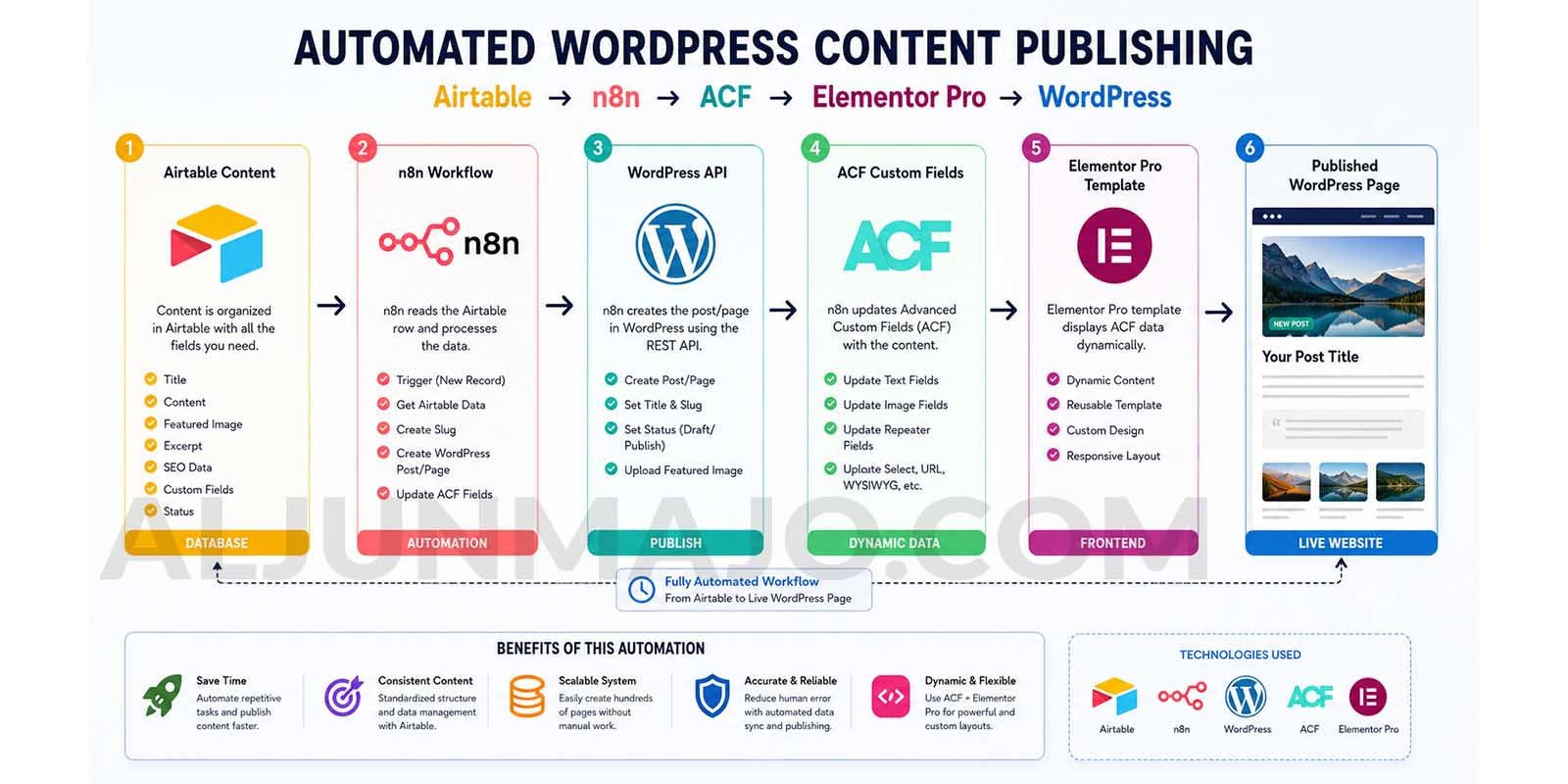
In this guide, you’ll learn how to build a fully automated WordPress page creation workflow using Airtable as your content database, n8n as the automation engine, Advanced Custom Fields (ACF) to handle dynamic field data, and Elementor Pro to render it all beautifully, without touching the page builder every single time.
Key Takeaways
- Create WordPress pages automatically from Airtable
- Use n8n to automate content publishing workflows
- Populate ACF fields without manual data entry
- Display content dynamically using Elementor Pro
- Scale content production efficiently
- Reduce repetitive publishing tasks
- Maintain consistent page templates
- Build a low-cost content automation system
Why Manual WordPress Page Creation Is Slowing You Down
If you’ve ever managed a website with more than a handful of service pages, landing pages, or location pages, you know the pain. You open WordPress, create a new page, drag and drop the layout in Elementor, copy-paste the H1 from a Google Doc, update the button text, paste the meta title into Yoast or RankMath, and hit publish.
Multiply that by 10, 20, or 50 pages, and suddenly your page builder has become a full-time job.
This workflow was never designed to scale. And that’s exactly the problem this guide solves.
The Stack: What Each Tool Does in This Workflow
Before diving into the setup, here’s a clear breakdown of what each tool is responsible for.
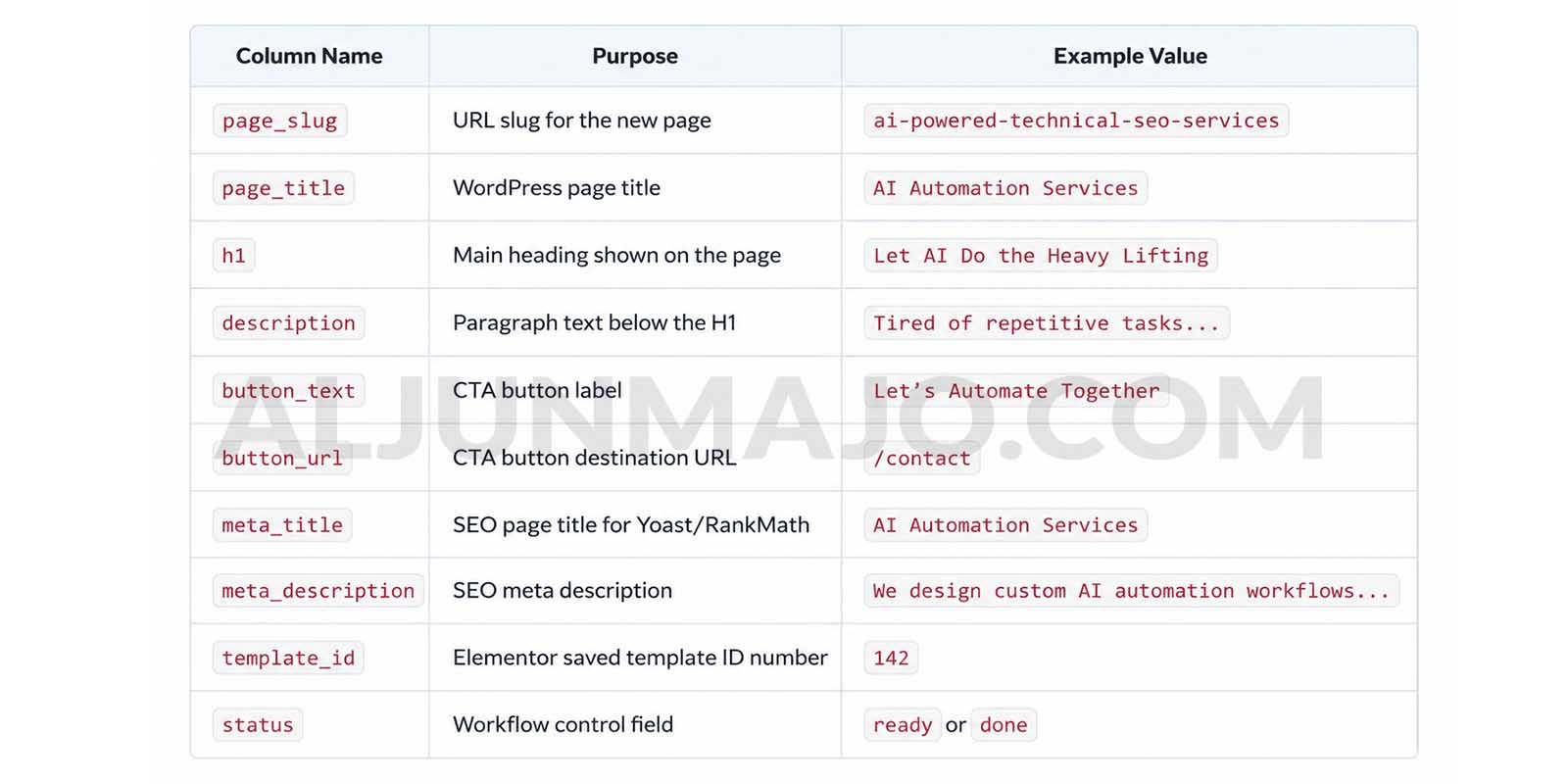
Airtable is your content command center. Every row in your Airtable table represents one WordPress page. The columns contain all the content fields: H1 title, description, CTA button text, button URL, page slug, meta title, meta description, and the Elementor template ID to apply.
n8n is your automation engine. It watches for new or updated rows in Airtable, then executes a sequence of HTTP requests to WordPress — creating the page, applying the Elementor template, updating the ACF fields, and finally publishing the page.
Advanced Custom Fields (ACF) is the middleware layer inside WordPress. Instead of n8n directly editing Elementor’s internal layout data, it writes content values into ACF fields. These fields are then connected to Elementor widgets via Dynamic Tags.
Elementor Pro is your page builder. You design the layout once — setting each widget to pull its content from an ACF field using Dynamic Tags. After that, Elementor renders the correct content automatically whenever the ACF fields are updated.
How the Workflow Flows — End to End
Step 1 — Fill your Airtable row
Add a new row to your Airtable content table. Fill in all the required columns: slug, H1, description, button text, button URL, meta title, meta description, and template ID.
Step 2 — n8n detects the new row
Your n8n workflow is triggered either by an Airtable webhook or a scheduled polling interval. The Airtable node reads the row and maps each column to a named variable inside n8n.
Step 3 — n8n creates the WordPress page
An HTTP Request node sends a POST request to the WordPress REST API endpoint (/wp-json/wp/v2/pages). The payload includes the page title, slug, and an initial status of draft. WordPress responds with the new page’s ID.
Step 4 — n8n applies the Elementor template
A second HTTP Request node updates the page’s post meta, setting _elementor_template_type and writing the Template ID to _elementor_page_template. This tells Elementor which saved template layout to use for this page.
Step 5 — n8n updates the ACF custom fields
Another HTTP Request node hits the ACF REST API endpoint for that page ID and writes all content values — H1 text, description, button text, button URL, meta title, and meta description(example fields) — into their corresponding ACF field keys.
Step 6 — Elementor renders the content dynamically
Because each Elementor widget in your template is connected to an ACF field via Dynamic Tags, the page now displays your Airtable content automatically. No manual editing in Elementor is needed.
Step 7 — Page is published, and the cache is cleared
A final HTTP Request node updates the page status from draft to publish. An optional additional node clears your caching plugin (WP Rocket, LiteSpeed, or similar) so the page is immediately live.
Setting Up Your Airtable Content Table
Your Airtable base should have a single table with the following columns. Keep the column names consistent, you’ll reference them directly inside your n8n workflow.
Building Your Elementor Template the Right Way
This is the most important part of the entire setup. Your Elementor template needs to be built using Dynamic Tags connected to ACF fields, not static text typed directly into widgets.
Here’s how to set it up:
Create your ACF field group first. In WordPress, go to ACF and create a new field group. Add fields for each content element: page_h1 (Text), page_description (Textarea), cta_button_text (Text), cta_button_url (URL), meta_title (Text), meta_description (Textarea). Set the field group to display on Pages.
Build your Elementor page template. Go to Templates → Saved Templates in Elementor and create a new Page template. Add your layout, a Heading widget for the H1, a Text Editor widget for the description, and a Button widget for the CTA.
Connect each widget to its ACF field using Dynamic Tags. Click on the Heading widget. Instead of typing text, click the dynamic icon (the database/stack icon) next to the content field. Select Dynamic Tags → ACF Field, then choose page_h1. Repeat this for every widget, description, button text, and button URL.
Save the template and note its ID. The template ID appears in the URL when you’re editing it in Elementor (e.g., post=142). This is the number you store in the template_id column of your Airtable table.
Building the n8n Workflow
Inside n8n, your workflow consists of the following nodes connected in sequence.
Airtable Trigger node – set to watch your content table for new records or records where status equals ready. This fires the workflow automatically when you add content.
Set node – maps the Airtable columns to clean variable names you’ll reference throughout the workflow: {{slug}}, {{h1}}, {{description}}, {{button_text}}, {{button_url}}, {{template_id}}, {{meta_title}}, {{meta_description}}.
HTTP Request node – Create page — method: POST, URL: https://yoursite.com/wp-json/wp/v2/pages, body: {“title”: “{{page_title}}”, “slug”: “{{slug}}”, “status”: “draft”}. Authentication uses WordPress application passwords. The response returns the new page_id.
HTTP Request node – Apply Elementor template method: POST, URL: https://yoursite.com/wp-json/wp/v2/pages/{{page_id}}, body includes the meta field to set the Elementor template.
HTTP Request node – Update ACF fields — method: POST, URL: https://yoursite.com/wp-json/acf/v3/pages/{{page_id}}, body: {“fields”: {“page_h1”: “{{h1}}”, “page_description”: “{{description}}”, “cta_button_text”: “{{button_text}}”, “cta_button_url”: “{{button_url}}”, “meta_title”: “{{meta_title}}”, “meta_description”: “{{meta_description}}”}}.
HTTP Request node – Publish method: POST, URL: https://yoursite.com/wp-json/wp/v2/pages/{{page_id}}, body: {“status”: “publish”}.
Airtable node – Update status marks the Airtable row’s status field as done, so the workflow doesn’t reprocess it.
Why This Approach Beats Editing Elementor's JSON Directly
You might be wondering — why go through ACF at all? Why not just edit Elementor’s raw _elementor_data JSON directly?
The short answer: Elementor’s internal JSON is fragile. Every widget, section, and column in your layout is represented as a deeply nested JSON structure. If you update the wrong key, use an incompatible format, or accidentally corrupt the structure, your page breaks silently. You won’t know until you open it and see nothing.
The ACF plus Dynamic Tags approach keeps your layout and your content completely separate. Elementor owns the design. ACF owns the data. n8n writes to ACF. Nothing touches Elementor’s internal structure directly. This means you can redesign your template in Elementor at any time without breaking the automation, because the automation never depends on the layout structure.
Scaling This Workflow Across Multiple Templates
Once you have one template working, scaling is straightforward. Create a second Elementor template for a different page type, such as a blog post or a location page. Save it and note its template ID.
In Airtable, simply add a new row with the new template ID in the template_id column. Your n8n workflow already reads that value dynamically and applies whichever template ID is specified per row. No changes needed in n8n.
This is the real power of storing the template ID in Airtable. One workflow handles unlimited page types.
Common Issues and How to Avoid Them
ACF REST API is not responding
Make sure the ACF to REST API plugin is installed and activated. By default, ACF fields are not exposed to the WordPress REST API without this plugin.
Elementor template not applying correctly
Double-check that the template ID in Airtable matches the actual post ID of your Elementor saved template, not the template’s display name or any other identifier.
Dynamic Tags showing blank content
This usually means the ACF field key doesn’t match what Elementor is referencing. Use ACF field keys (not field labels) and verify them in the ACF field group settings under the field name.
Pages publishing before ACF fields are populated
Ensure your n8n nodes run in the correct sequence. The ACF update node must complete before the publish node fires. Use n8n’s built-in node chaining and avoid parallel execution for these steps.
Cache not clearing
Add a final HTTP Request node that calls your caching plugin’s API. WP Rocket, LiteSpeed Cache, and most major caching plugins offer REST API endpoints for cache purging.
Who This Workflow Is Built For
This automation is ideal for digital marketing agencies managing client websites with frequently updated service pages. It’s equally powerful for SEO professionals building programmatic landing pages at scale, WordPress developers who want to eliminate repetitive manual publishing tasks, and business owners who want to update their website content without opening Elementor every time.
If you publish more than five pages per month and each one follows a similar layout structure, this workflow pays for itself in saved time within the first week.
Start Automating Your WordPress Workflow Today
You now have everything you need to set up a production-ready WordPress automation pipeline. Airtable handles your content. n8n does the heavy lifting. ACF bridges the data. Elementor Pro makes it look great. And your new pages go live without you touching the page builder.
The best time to set this up was the last time you manually published five pages in a row. The second-best time is right now.
Ready to build this for your website? Get in touch and let’s set up your automation workflow together.
Looking for an AI Chatbot for Your WordPress Website?
Automating content publishing is just one way to streamline your website operations. If you’re also looking to automate customer support, FAQ responses, lead generation, or product recommendations, check out my AI Chatbot solution for WordPress.
The chatbot is trained using your own business information, products, services, and FAQs, helping provide accurate answers without hallucinations or invented responses.
Frequently Asked Questions
Do I need coding skills to build this workflow?
No. n8n uses a visual node-based editor, and all the steps use pre-built nodes. The HTTP Request nodes require you to enter API URLs and JSON payloads, but no custom programming is needed. If you can fill out a form, you can build this workflow.
Does this work with Elementor Free or only Elementor Pro?
You need Elementor Pro. The Dynamic Tags feature, which connects Elementor widgets to ACF fields, is a Pro-only feature. Without it, your widgets will display static text, and the automation will not be able to inject content dynamically.
Can I use this workflow for WooCommerce product pages?
Yes, with minor modifications. The WordPress REST API supports WooCommerce products through the WooCommerce REST API (/wp-json/wc/v3/products). You would adjust the n8n HTTP Request nodes to target product endpoints instead of page endpoints, and update your ACF fields accordingly.
How do I handle SEO meta fields like Yoast title and description?
RankMath both expose their meta fields through the WordPress REST API. You can update Yoast meta by writing to _yoast_wpseo_title and _yoast_wpseo_metadesc post meta fields via an additional HTTP Request node in your n8n workflow.